---
title: "Pay Monthly Selectors"
slug: "pay-monthly-selectors"
updated: 2026-05-19T21:13:57Z
published: 2026-05-19T21:13:57Z
canonical: "developer.upgrade.com/pay-monthly-selectors"
---
> ## Documentation Index
> Fetch the complete documentation index at: https://developer.upgrade.com/llms.txt
> Use this file to discover all available pages before exploring further.
# Pay Monthly Selectors
## Overview
📘 This section is only relevant for **payment pages**.
- If you are implementing From Pricing for the **first time**, you are in the right section! On this page you will find instructions for our **new** SDK version
- If you have implemented From Pricing **previously**, please note these are instructions for our newest SDK version.
**Legacy Instructions:** [[LEGACY] Pay Monthly Selectors](/v1/docs/pay-monthly-selectors)
**Migration Instructions:** [From Pricing v2 Migration](/v1/docs/from-pricing-v2-migration)
The Pay Monthly Selector lets customers choose Flex Pay as their payment method during checkout. Drop an `<up-from-pricing>` component inside your existing payment options and customers instantly see up-to-date monthly pricing - no extra wiring required.
If your site already has payment selectors for different methods, you add Flex Pay as a new option alongside them.
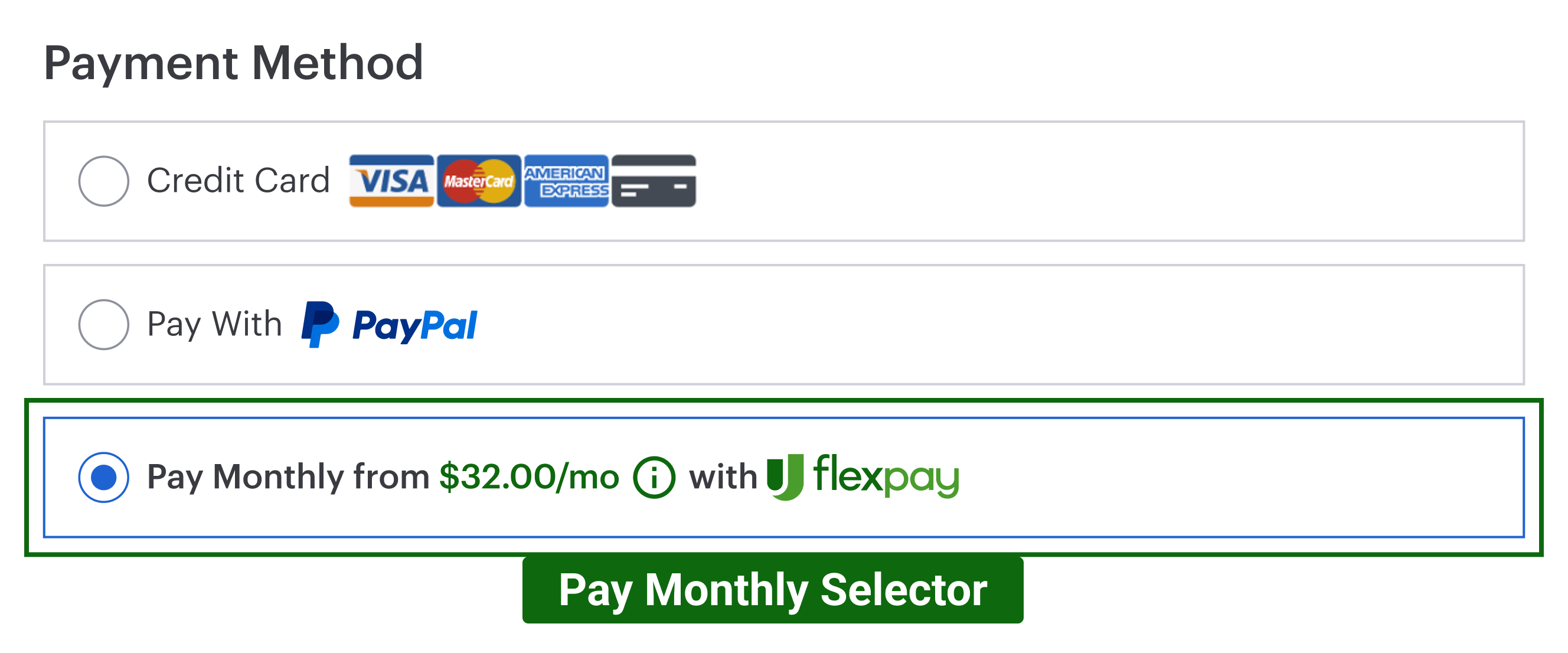
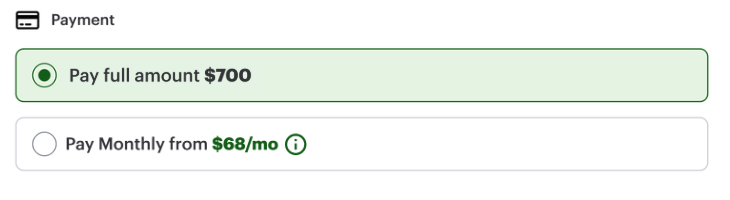
When clicked, the selector activates the Flex Pay iFrame ([Step 5](https://uplift-docs.document360.io/docs/step-5-setup-flex-pay-iframe-v2)) where customers complete their financing application.
## Required Elements
The Pay Monthly Selector is composed of:
1. **Selector container** - wraps the entire option
2. **"Pay Monthly" label** - text identifying the payment method
3. **From Pricing component** - shows the monthly offer amount and handles the error state when an offer is unavailable

## Configuration
The Pay Monthly selector is **your component** - you build it to match your payment page design. The SDK provides the `<up-from-pricing>` component that goes inside and handles all the pricing logic automatically.
### What You Build vs What the SDK Handles
| You Build | SDK Handles |
| --- | --- |
| Selector layout and styling | Monthly payment calculation |
| Radio button / card selection logic | Offer availability detection |
| Enable/disable states | Error messages and tooltips |
| iFrame activation on selection | Pricing updates when order changes |
### Basic Example
Add `<up-from-pricing>` inside your payment method selector:
```
```
### Key Attributes
| Attribute | Value | Why |
| --- | --- | --- |
| `price-value` | Same as `orderInfo.order_amount` | Ensures pricing matches the checkout total |
| `context` | `"pay_monthly_selector"` | Optimizes layout for selector placement |
### The Role of `context="pay_monthly_selector"`
| | With `context="pay_monthly_selector"` | Without context (manual config) |
| --- | --- | --- |
| **Wording** | `Pay Monthly from $50/mo` | `or from $50/mo` |
| **Error state** | Shown automatically | Hidden unless `show-error="true"` is set |
| **Logo** | Shown automatically | Hidden unless `show-logo="true"` is set |
**With `context="pay_monthly_selector"`**
```
```
**Without context (manual config)**
```
Pay Monthly
```
## Callback Handler Integration
The callback handler tells you when Pay Monthly is available. Use it to enable or disable your selector:
```
var payMonthlyOption = document.getElementById("pay-monthly-option");
var payMonthlyRadio = document.getElementById("pay-monthly-radio");
// In your callback handler (Step 4)
OFFER_AVAILABLE: function() {
// Enable the Pay Monthly option
payMonthlyRadio.disabled = false;
payMonthlyOption.classList.remove("disabled");
},
OFFER_UNAVAILABLE: function() {
// Keep Pay Monthly visible (recommended), but disable selection
payMonthlyRadio.disabled = true;
payMonthlyOption.classList.add("disabled");
// Optional fallback:
// If your UX requires auto-switching to another method, implement it carefully.
// Avoid forced focus changes when possible (accessibility).
}
```
**How it works:** When the offer is unavailable, the `<up-from-pricing>` component automatically displays "NOT AVAILABLE" with a tooltip explaining why. You just need to disable the selector so customers can't select it.
### Activating the iFrame
When the customer selects Pay Monthly, show the Flex Pay iFrame:
```
document.getElementById("pay-monthly-radio").addEventListener("change", function() {
if (this.checked) {
// Show the iFrame container (see Step 5)
document.getElementById("up-pay-monthly-container").style.display = "block";
}
});
```
See [Step 5: Setup Flex Pay iFrame](https://uplift-docs.document360.io/docs/step-5-setup-flex-pay-iframe-v2) for iFrame configuration.
## Styling Guidelines
Style the selector to match your payment page.
1. **Offer available** - component renders the monthly pricing inside the selector
.png)
1. **Offer unavailable** - component renders error state (when `show-error="true"`)
.png)
Style the component using CSS Custom Properties:
```
#pay-monthly-option up-from-pricing {
--fp-font-size: 14px;
--fp-price-color: inherit;
}
/* Disabled state styling */
.payment-option.disabled {
opacity: 0.6;
cursor: not-allowed;
}
```
## French Translations
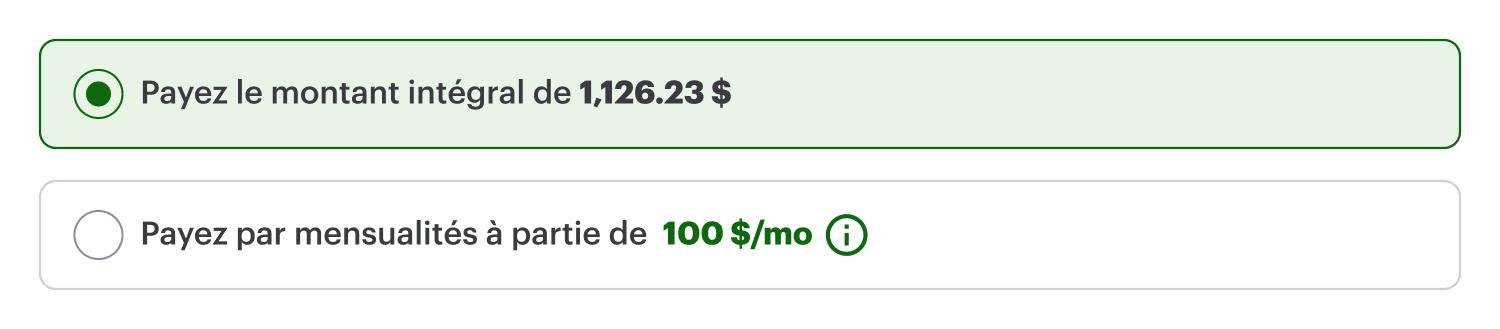
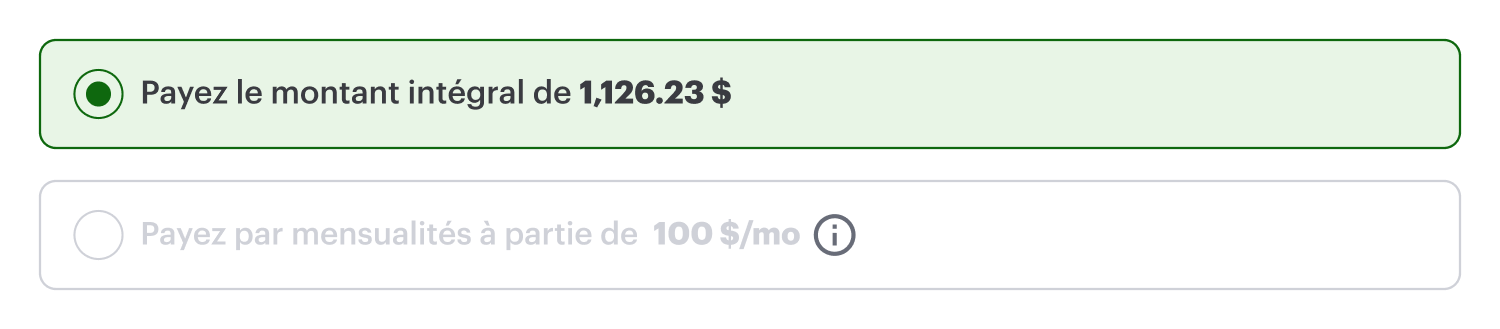
The `<up-from-pricing>` component handles French translations automatically when `locale="fr-CA"` is set (either globally via `init()` or per component). This includes both pricing text and error messages.
1. **Offer Available**
1. **Offer Unavailable**
**Step-by-step Validation Guide (Recommended)**
This validation applies to **payment pages** only. Ensure you have completed [Steps 1-4](https://uplift-docs.document360.io/docs/step-1-load-flex-pay-payments-v2) before testing.
1. Add the selector HTML to your payment page (see [Basic Example](/docs/pay-monthly-selectors#basic-example) above for the full code):
```
```
1. Refresh the page. The selector should show the monthly price:
.png)
1. Test the scenarios:
**Offer unavailable** - Set `orderInfo.order_amount` to `1000` ($10.00). The `<up-from-pricing>` component automatically displays the error state with a tooltip showing the reason.
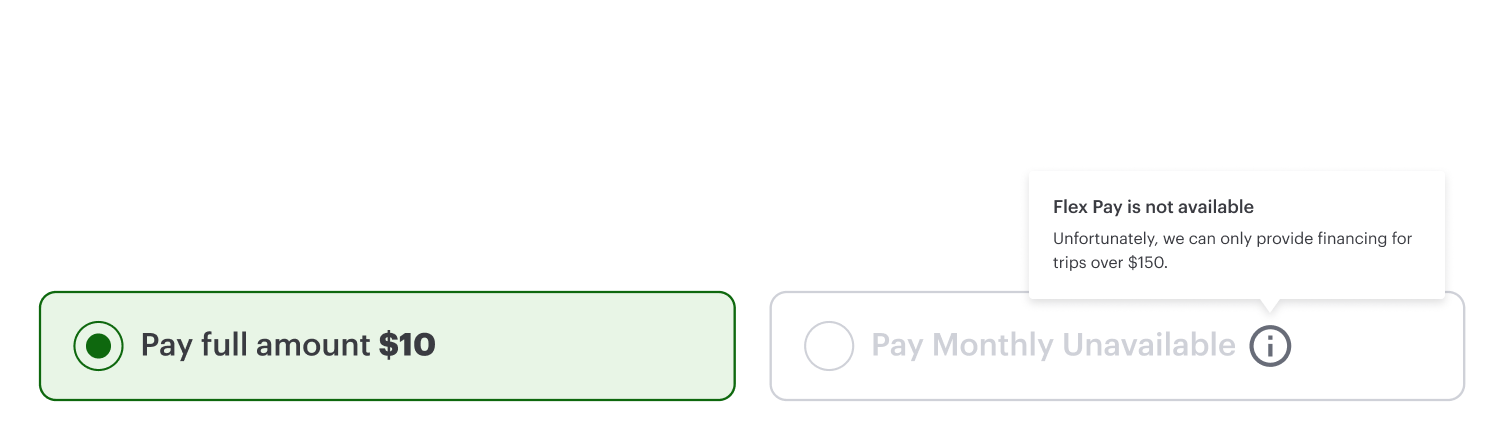
No callback handler changes are needed for the error display - the component handles it.
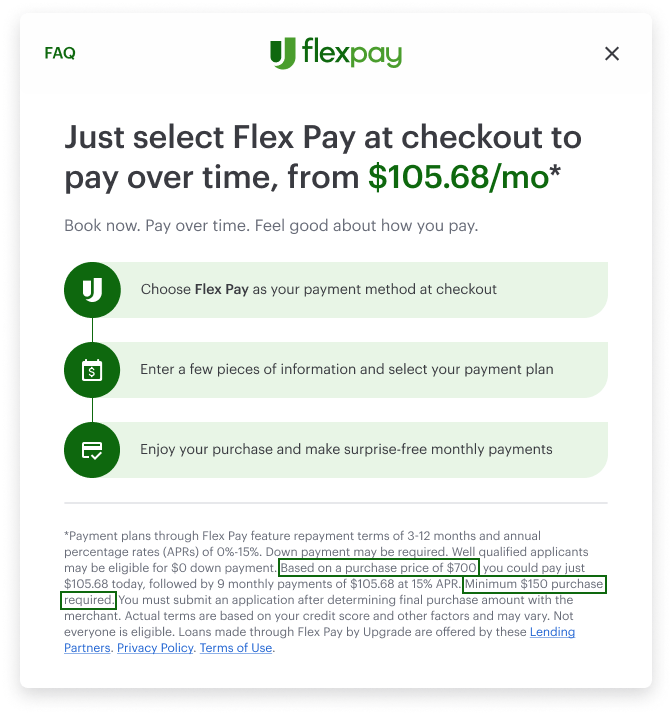
**Offer available** - Set `orderInfo.order_amount` to `70000` ($700.00). The component renders the monthly pricing and the information modal is accessible.
## Next Steps
- **From Pricing attributes and styling:** [From Pricing Configurations](https://uplift-docs.document360.io/docs/from-pricing-and-information-modal-configurations-v2)
- **iFrame setup:** [Step 5: Setup Flex Pay iFrame](https://uplift-docs.document360.io/docs/step-5-setup-flex-pay-iframe-v2)