---
title: "Pay Monthly Selectors"
slug: "pay-monthly-selectors-1"
updated: 2026-01-29T17:53:32Z
published: 2026-01-29T17:53:32Z
canonical: "developer.upgrade.com/pay-monthly-selectors-1"
---
> ## Documentation Index
> Fetch the complete documentation index at: https://developer.upgrade.com/llms.txt
> Use this file to discover all available pages before exploring further.
# Pay Monthly Selectors
### Overview
The Pay Monthly Selector is an embeddable HTML element that will allow the user to select Flex Pay as their preferred method of payment during the payment flow. It is required that selectors display up-to-date prices to allow the agent to better differentiate among the different payment methods. Below is an example of such an element.
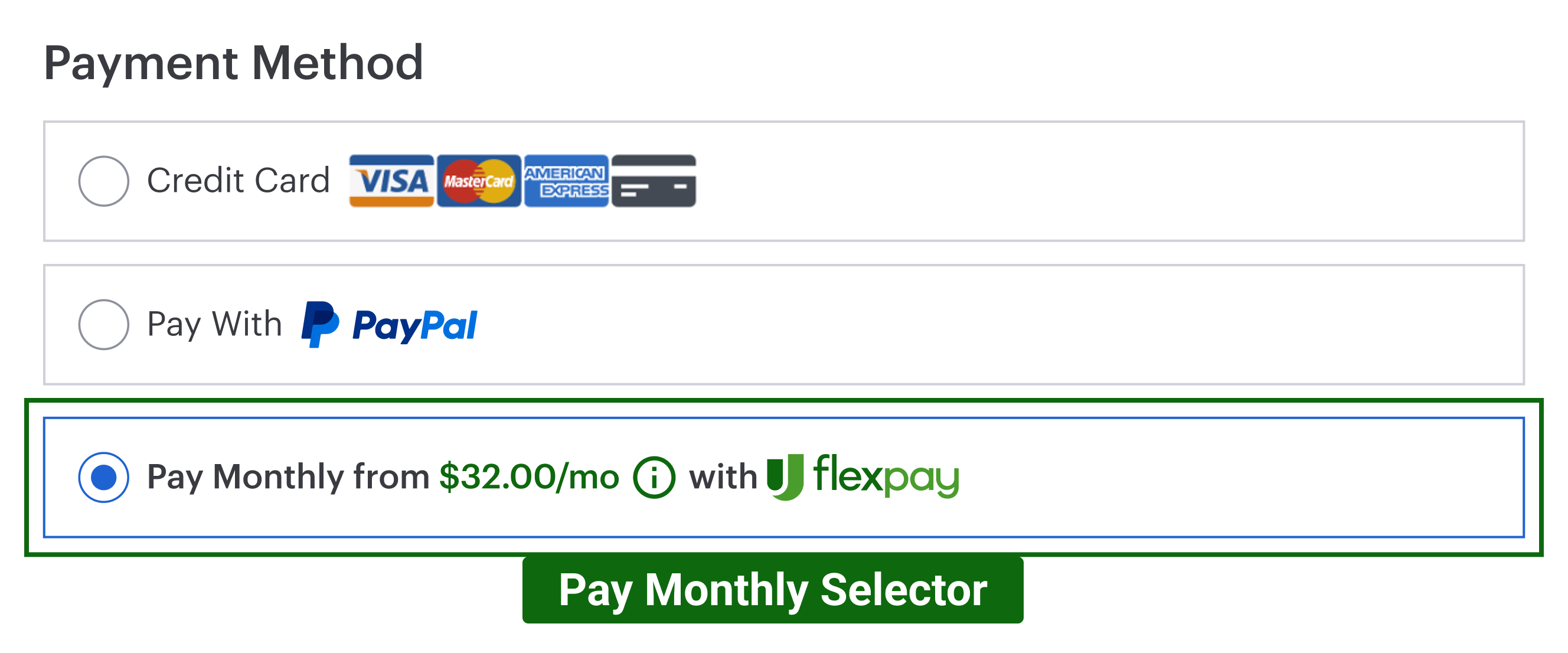
Note that if your website doesn’t already contain Payment Selectors for different payment methods, then you will need to implement this capability to allow customers to select their preferred payment method. However, if your flow already contains the Payment Selector component, you can simply add Uplift as a new option of payment in your current HTML structure as in the example below.
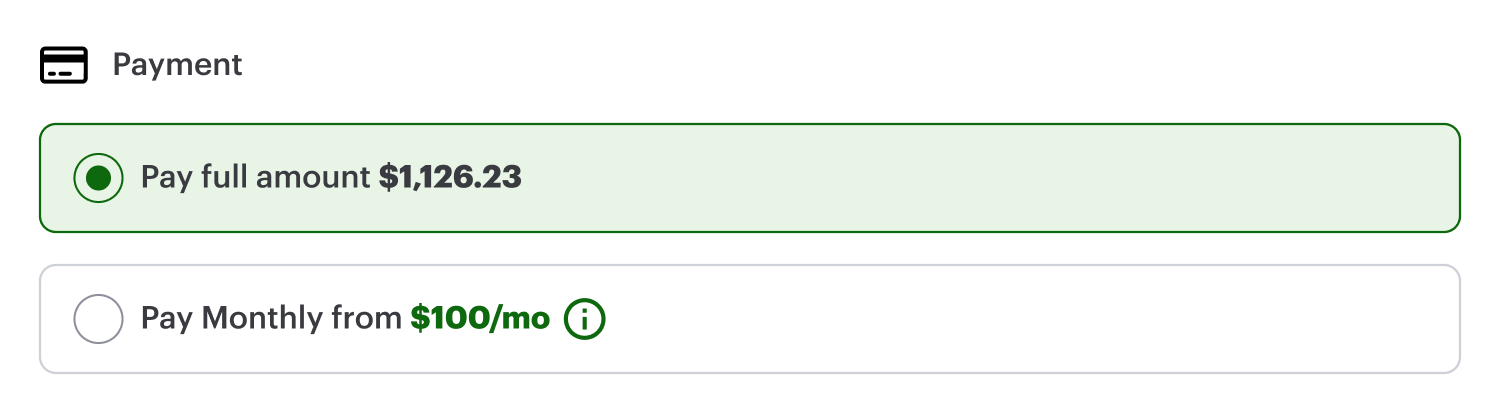
The Pay Monthly Selector is composed of 3 required elements as shown in the image below.
- Pay Monthly Selector Container
- “Pay Monthly” wording
- From Pricing Node

### Configuration
Add the following HTML code snippet to enable a Pay Monthly Selector.
```
Pay Monthly
from
/mo
NOT AVAILABLE
```
We have provided a default tooltip (icon: ), in order to use it just copy the script below and place it in the corresponding spot in the Pay Monthly node script (above).
```
//default svg informational icon
```
📘 On payment pages, while the pop up modal is configured using the `data-up-price-value attribute`, the actual offer is based on the `orderInfo.order_amount`. Thus it is mandatory to use the same value for both `data-up-price-value` attribute and `orderInfo.order_amount` on a payment page.
⚠️ It is vital to follow the HTML structure as above or the Flex Pay API won’t work as expected.
Key callout for the Pay Monthly Selector:
- **Display should be set as none** for `up-pay-monthly-selector-from-pricing` and `up-offer-not-available` spans keep “display” set as none;
- `data-up-price-value` **should be cents**; if you don’t convert the price to cents you will see a mismatch between offers
- `data-up-price-type` should be **total**
- `data-up-from-currency-unit-major` is utilized by the Uplift library to populate monthly pricing offers, therefore leave it as shown in code snippet above
- `data-up-comparison-type` should **never be included**
- The `up-pay-monthly-selector` should be always **displayed**
- As you already noticed, there is a **new element**, the `up-offer-not-available` span; this element will be shown to the user when the offer is not available and by hovering over the icon a “reason” will appear
### Styling guidelines
You can follow any style and customization that best matches your payment page. However, make sure to validate that the Pay Monthly Selector contains all the required elements mentioned above.
In addition, it is also your responsibility to show (enable) and hide (disable) the pay monthly selector depending on the [payment status](https://docs.uplift.com/docs/payment-status#uplift-agent-connect) in the [callback handler](https://docs.uplift.com/docs/step-3-define-callback-handler).
1. When a Flex Pay offer is available that is `OFFER_AVAILABLE` status, your selector should look similar to the image below.

2. If however the Uplift service is unavailable (`SERVICE_UNAVAILABLE`) or an offer is unavailable for current customer (`OFFER_UNAVAILABLE`), then the payment selector should look similar to the image below.
