---
title: "From Pricing"
slug: "from-pricing-ac"
updated: 2026-01-28T21:29:17Z
published: 2026-01-28T21:29:17Z
canonical: "developer.upgrade.com/from-pricing-ac"
---
> ## Documentation Index
> Fetch the complete documentation index at: https://developer.upgrade.com/llms.txt
> Use this file to discover all available pages before exploring further.
# From Pricing
### Initialization
Please contact your account manager to enable this feature for you.
After Agent is initialized, use **Pricing Nodes**, which are HTML elements showcasing the Pay Monthly Offer as an alternative payment method. An example of a Pricing Node is as shown below:

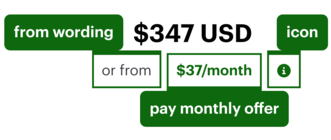 The Pricing Node is composed of 3 required elements:
- “From” wording
- Pay Monthly Offer
- Information icon
### Configuration
In order to configure Flex Pay’s Monthly Pricing Nodes as mentioned above, add the **hidden Pay Monthly** nodes wherever the offers are to be displayed using the HTML code as shown below.
```
or from
/mo
```
We have provided a default tooltip (icon: ), in order to use it just copy the script below and place it in the corresponding spot in the Pay Monthly node script (above).
```
//default svg informational icon
```
📘 Key callout for the From Pricing node
- The input to `data-up-price-value` should be **updated to be dynamic** in order to reflect the specific option being viewed by your customers
- `data-up-price-value` **should be cents**; if you don’t convert the price to cents you will see a mismatch between offers
- `display` **should be set as none**; you don’t have to handle when to show or display an offer since the Flex Pay API will handle this for you
⚠️**WARNING**: It is vital to follow the HTML structure as above, or the Flex Pay API won’t work as expected.
Note that once the Pay Monthly Nodes have been configured, a single call of the `window.Uplift.Agent.load(orderInfo)` method will fetch and display the Pay Monthly pricing (offers) for each node as per their respective `data-up-price-value` attribute.
Thus, it is the **best recommended practice** to configure all Pay Monthly nodes with the updated `data-up-price-value` attribute (not fixed amounts), followed by a single `window.Uplift.Agent.load(orderInfo))` call to create and attach the updated offers on all the nodes.
### Styling guidelines
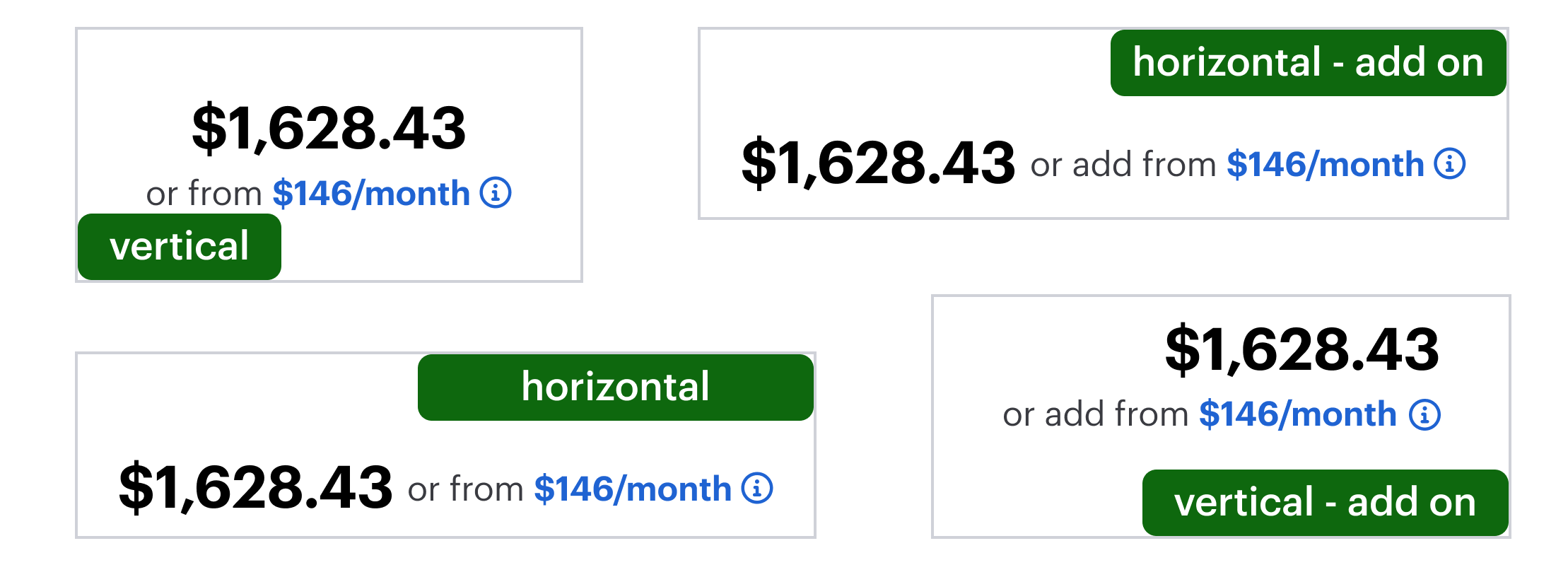
The From Pricing should always be positioned immediately next to or under total prices, below are sample layouts:
**Styling** guidelines are as follows:
1. “$xx/mo” is underlined and text link colored, so users know it’s clickable (applies to all from pricing)
2. Link color and text colour must pass WCAG AA color contrast
3. From pricing is no larger than 80% of the price font size (e.g. if the price font size is 24px, the From Pricing is no larger than 19px)
4. From pricing style should match the price style:
1. If the price is “$900”, the from pricing is “$81”
2. If the price is “$900 USD”, the from pricing is “$81 USD”
5. Feel free to customize the info icon that best matches your website
**Alignment** related compliance guidelines are as follows:
1. “from” must be on the same line as the price “$xx/mo ”
2. “or” can be on a separate line above “from $xx/mo ”
3. The icon must also be present after and on the same line as the From Pricing
4. When the pricing is shown as an additional cost, use “or add from $xx/mo ” or "or from +$xx/mo "
1. “or add” can be on a separate line above “from $xx/mo ”
5. For the total price at Payment Page from pricing can be displayed as “or Pay Monthly from $xx/mo ”
1. “from” must be right beside “$xx/mo ”
### French Translations
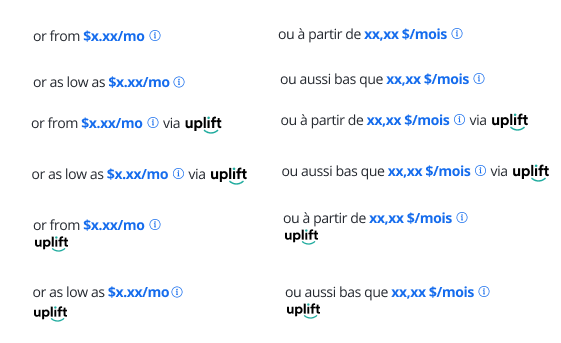
Please use the following image as reference if you require a French translation for the Uplift From Pricing messaging.